
Jump to a topic ▾
Get in the game
1. Register for the site2. Join a game3. Take a seat4. Configure camera & micTalk to other players
5. Raise your hand6. Answer a private chat request7. Send a private chat request8. Send a whisperYour profile & seat
9. Set your name & avatar10. Leave your seat11. Request Grimoire access12. Leave the gameScript & grimoire
13. Open the Character tab14. Set tokens & remindersTroubleshooting
15. Camera or mic still won’t work16. Can’t see your token?Register for the site
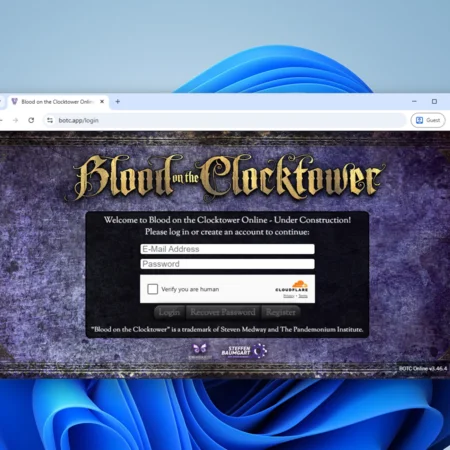
Go to botc.app and fill out the form, following the instructions. Then check your email for the verification link — look in your Spam folder if it doesn’t arrive.
Join a game
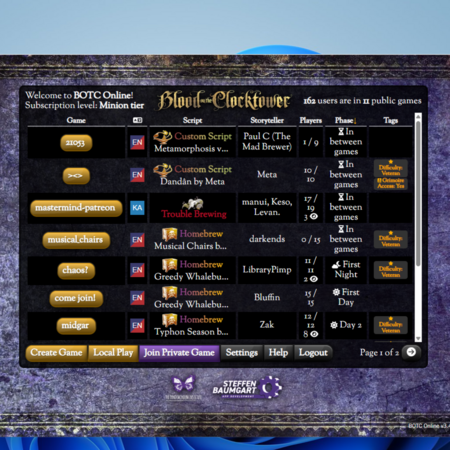
Once you’re logged in you’ll see a list of public games you can join. They vary in language, difficulty, current phase and type. Pick one to join as a spectator — or maybe even play. Ask the Storyteller if you have questions.
Most Storytellers invite you with a link, and that’s all you need. It looks like https://botc.app/join/11111.
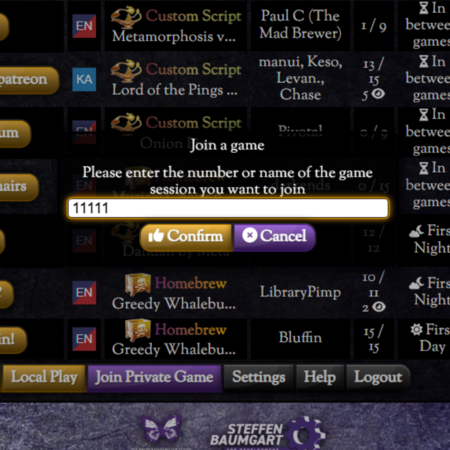
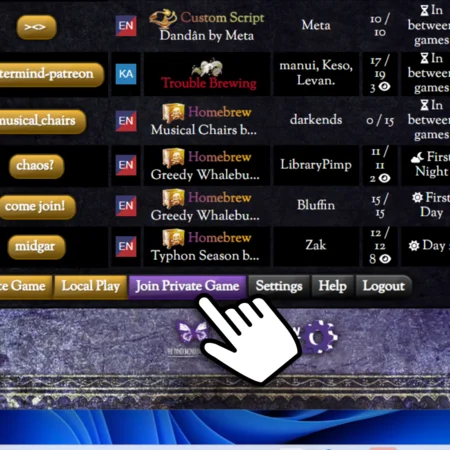
— or —Click Join Private Game and enter the code for the private game.
Take a seat
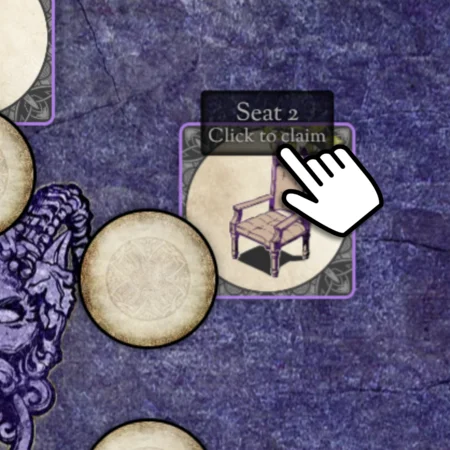
When you join a game you are a Spectator — you can watch, but you’re not in the game. To become a player, click any seat that says “Click to Claim”.
Configure camera & mic
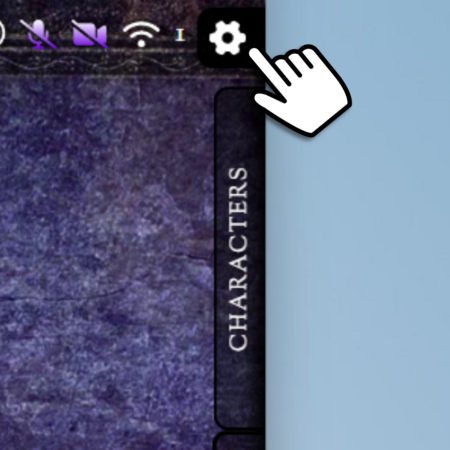
Press Q on your keyboard.— or —Click the cog.
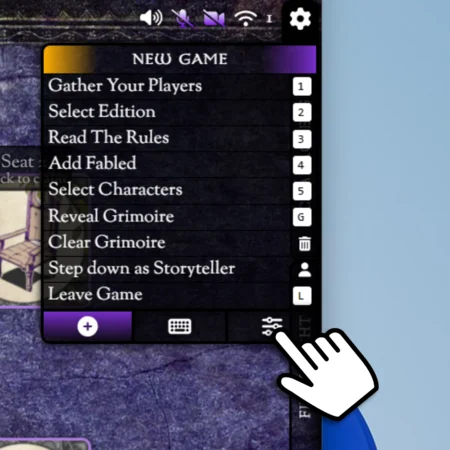
Click the 3rd tab.
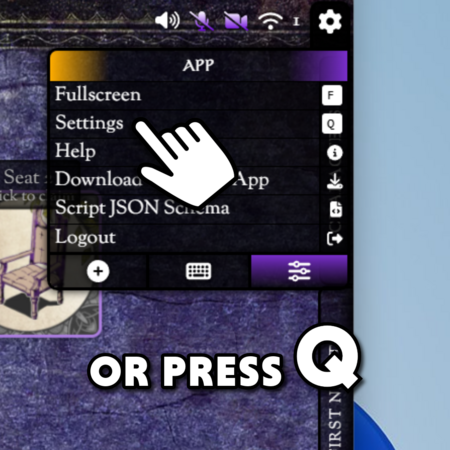
Click Settings.
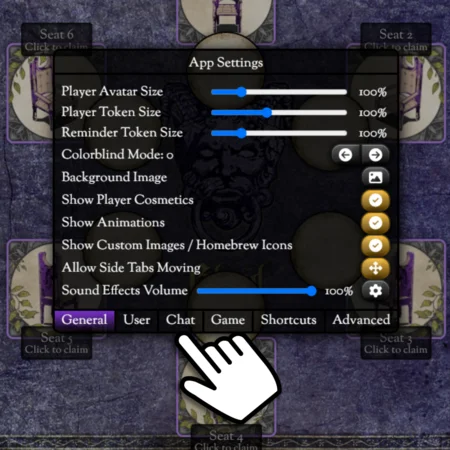
Click the 3rd tab, Chat.
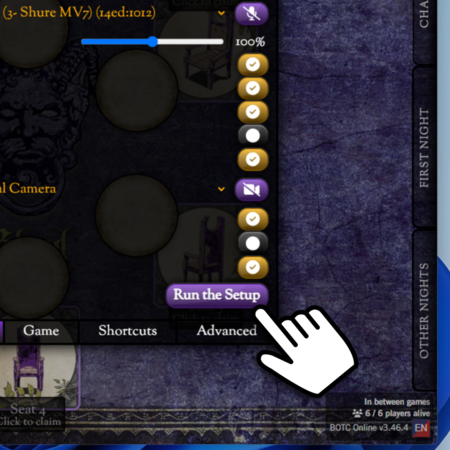
Click Run the Setup.
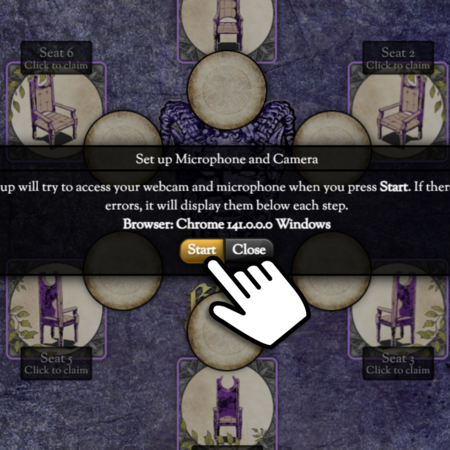
Click Start.
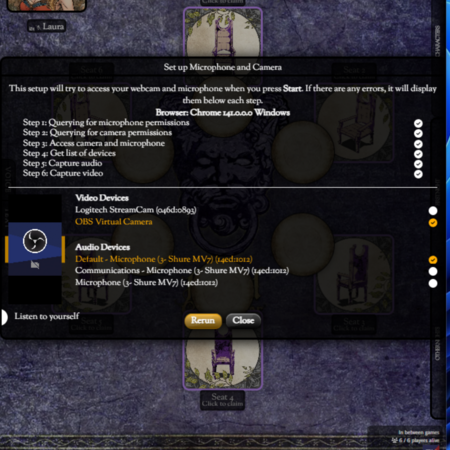
Choose which camera and microphone to use. When the camera is right you’ll see yourself; when the mic is right you’ll see yellow bars move with your voice. When you’re done, click Close.
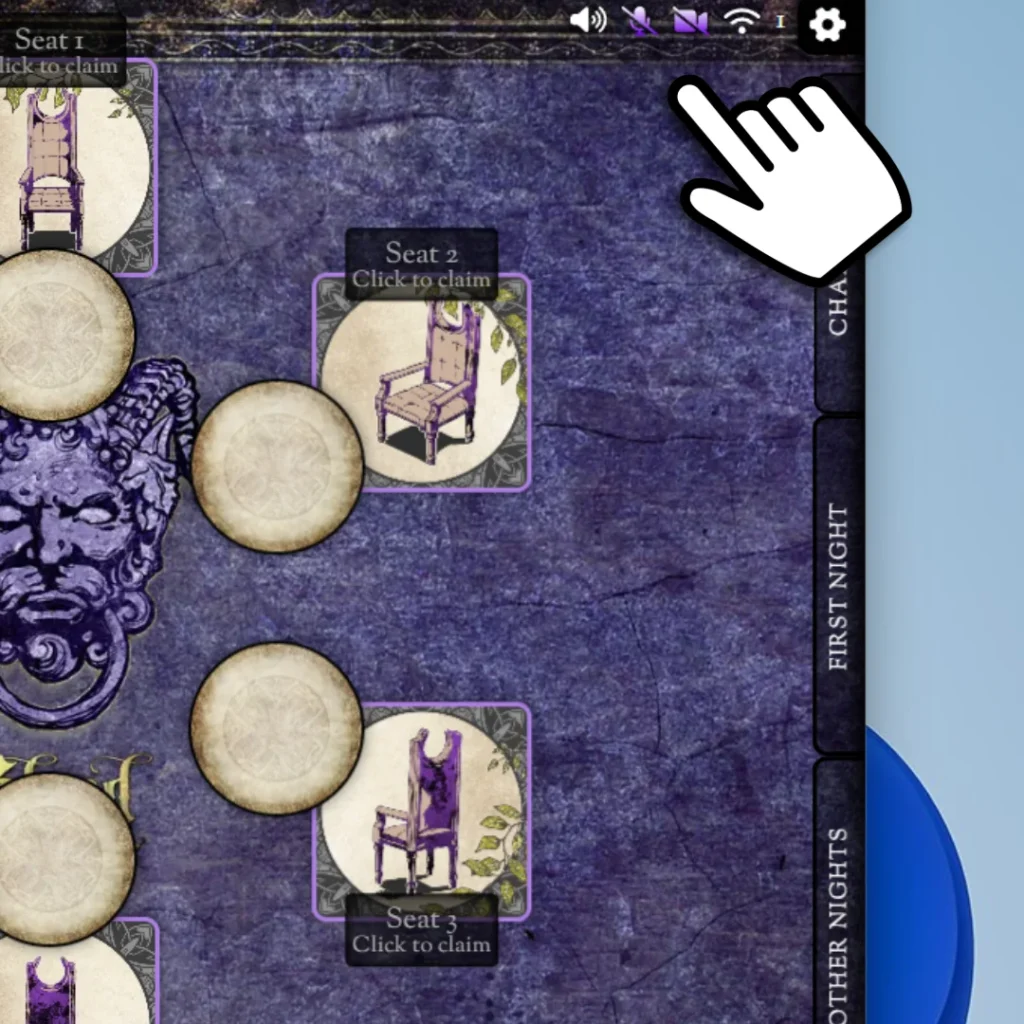
Back in the Town Square you’ll start muted with your camera off. Turn them back on with the buttons in the upper-right corner.
Talk to other players
Raise your hand
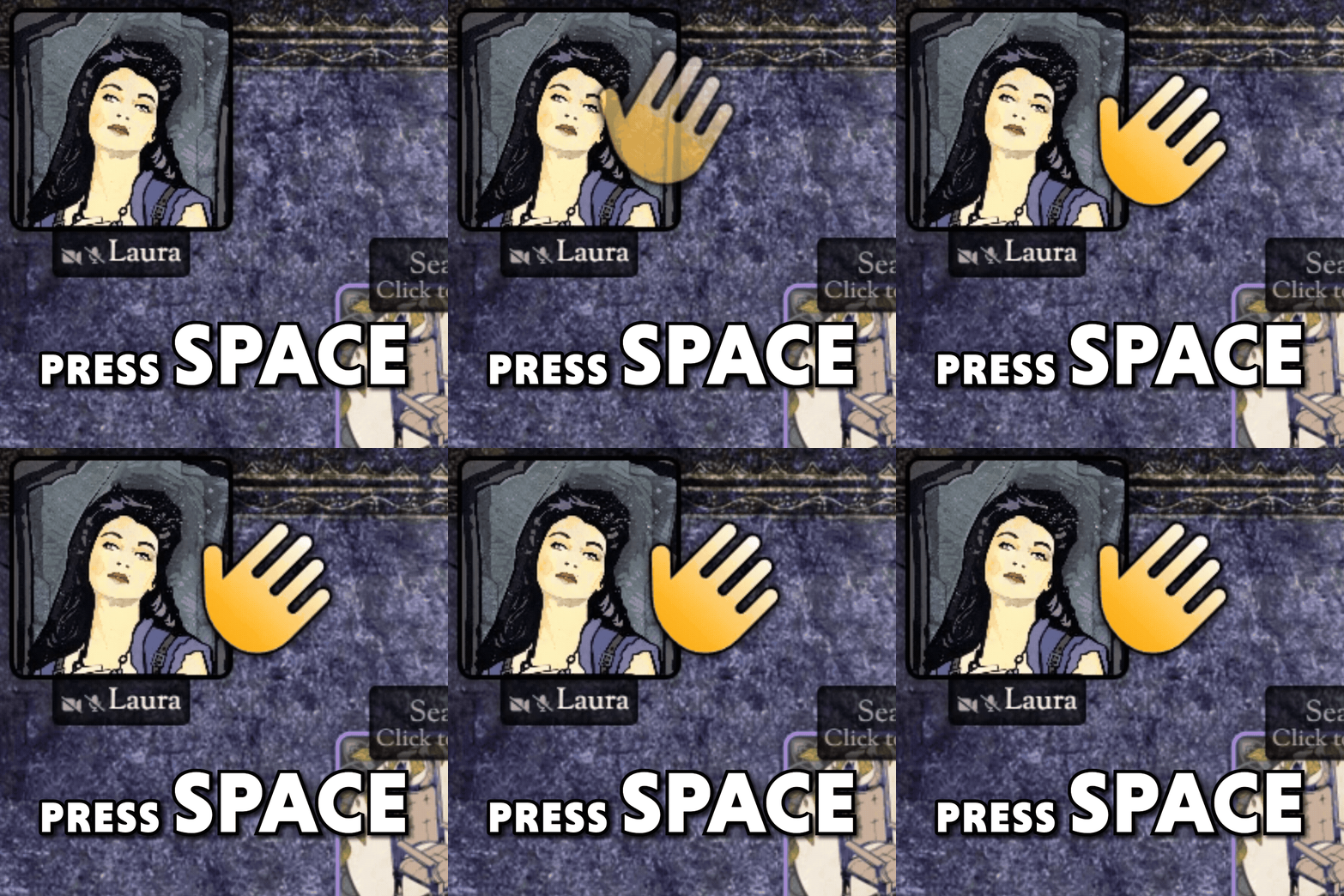
Raise your hand to show you want to speak — it’s also used for voting. Press SPACEBAR to raise and lower your hand.
Answer a private chat request
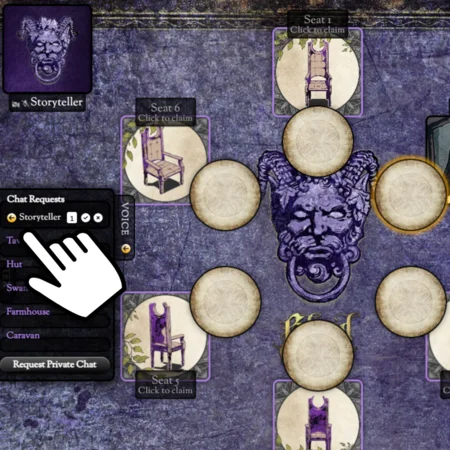
When someone wants to chat you’ll hear a ding and their name appears in the left Voice tab. Click their name to accept. (There are no dings during the Night phase by default.)
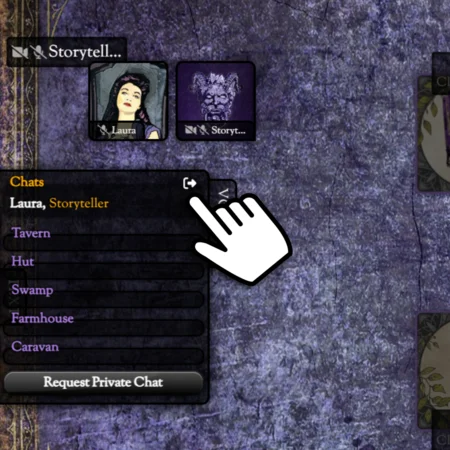
No one else can hear a private chat, though they can still see your camera (except at Night). The Storyteller and spectators with Grim access can join at any time. To leave, click Exit or press BACKSPACE.
Send a private chat request
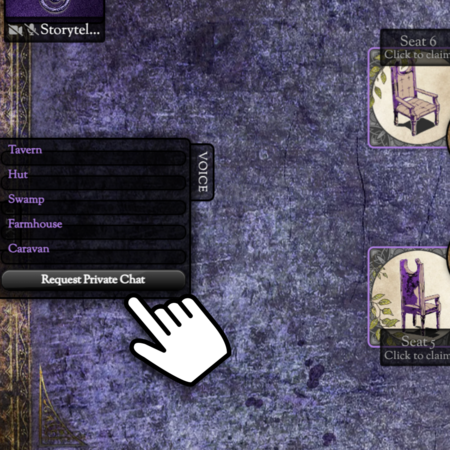
Press ENTER.— or —In the Voice tab, click Request Private Chat.
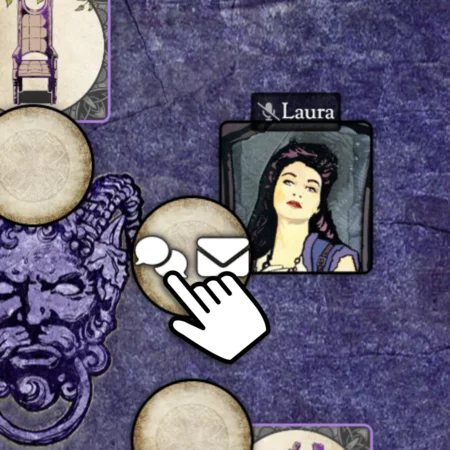
Click the speech bubble to request a private chat.
Send a whisper
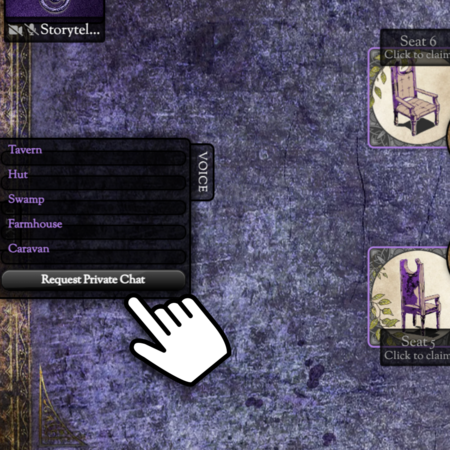
Press ENTER.— or —In the Voice tab, click Request Private Chat.
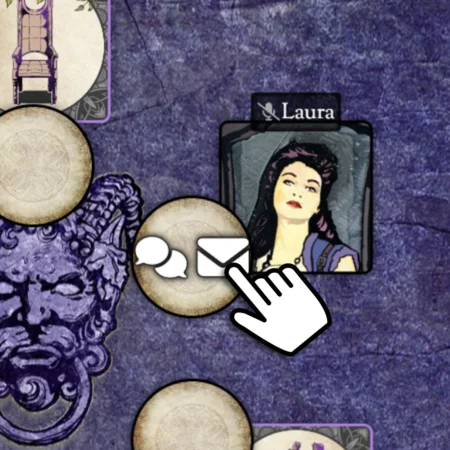
Click the envelope to send a whisper. You can only whisper your neighbours and the Storyteller. An envelope animation plays — its size matches your message length.
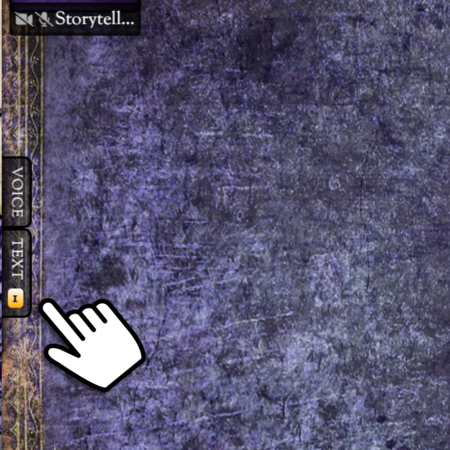
New-message notifications show on the Text tab. Press TAB to open it.
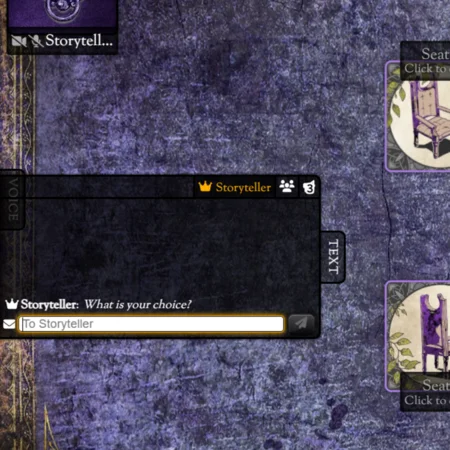
There’s also a public chat everyone can see. Messages disappear after a while.
Your profile & seat
Set your name & avatar
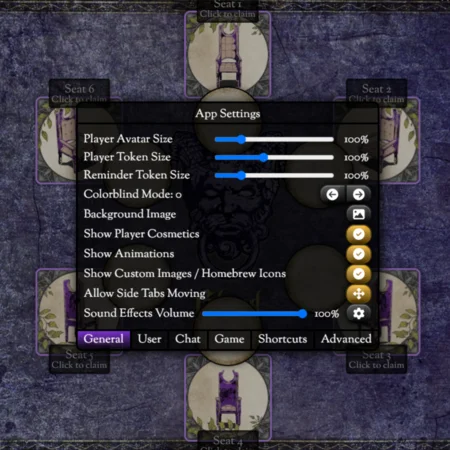
Press Q to open the App Settings menu.
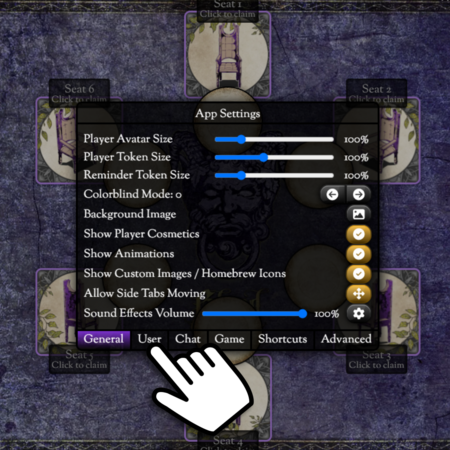
Click the 2nd tab, User.
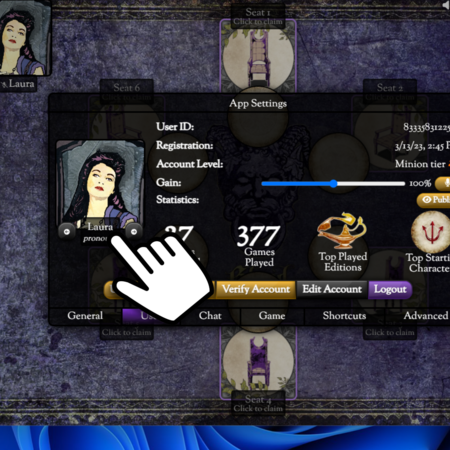
Click your name to change it.
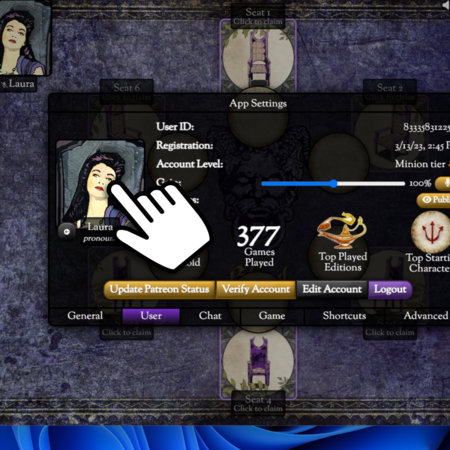
Click the avatar to change your picture (requires a Patreon membership).
Leave your seat
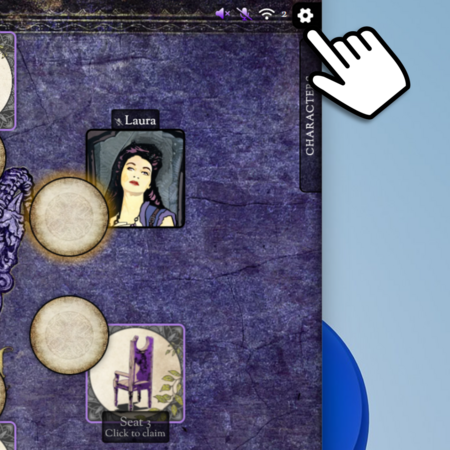
Click the cog.
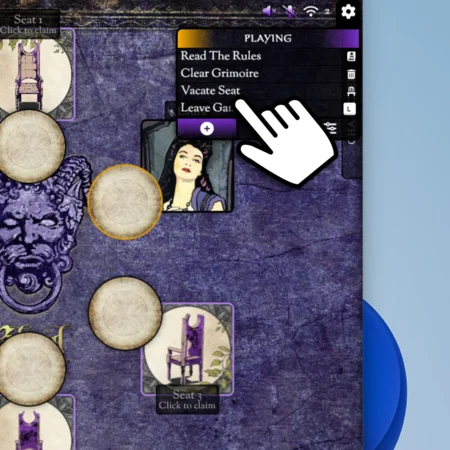
Click Vacate Seat. You stay in the game as a Spectator — you can whisper the Storyteller and chat with other spectators.
Request Grimoire access
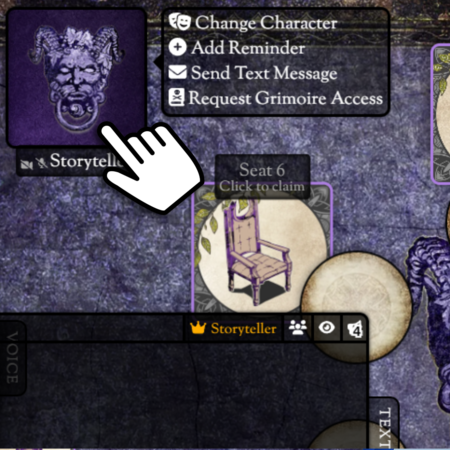
Click the Storyteller to open the menu, then choose Request Grimoire Access. If they agree, you can view everyone’s role and join private chats — but you can’t message or speak to players.
Leave the game
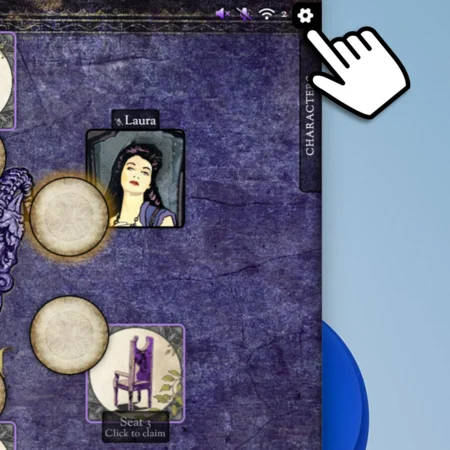
Press L on the keyboard — there’s a warning message to prevent accidents.— or —Click the cog.
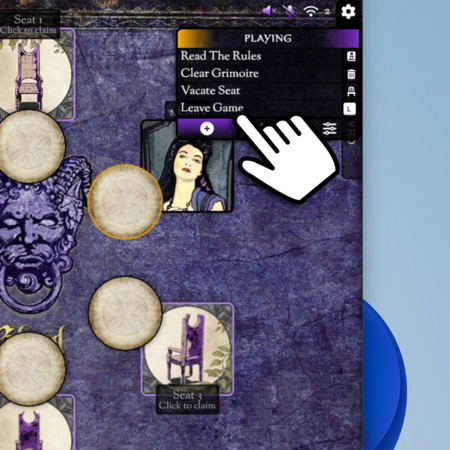
Click Leave Game.
Script & grimoire
Open the Character tab
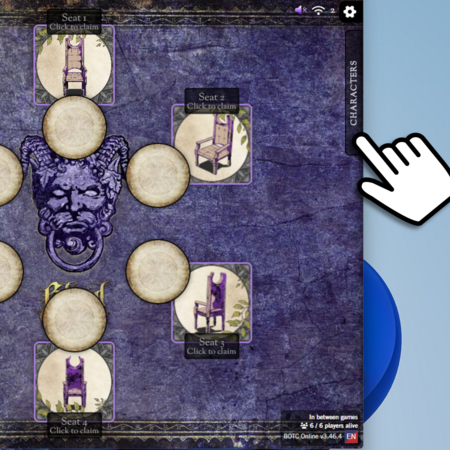
Click the Character tab to open a shortened list of characters on the script.
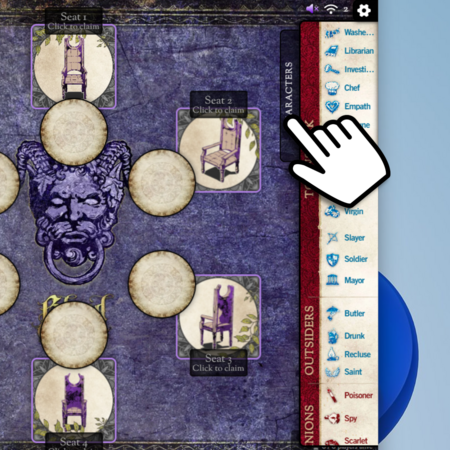
Click the Character tab again for the full script view.
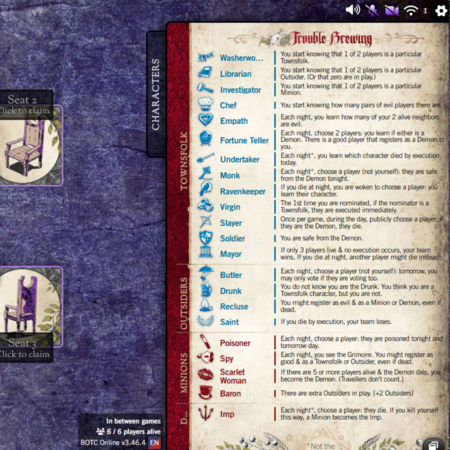
Click the Character tab once more to close it.
Set tokens & reminders
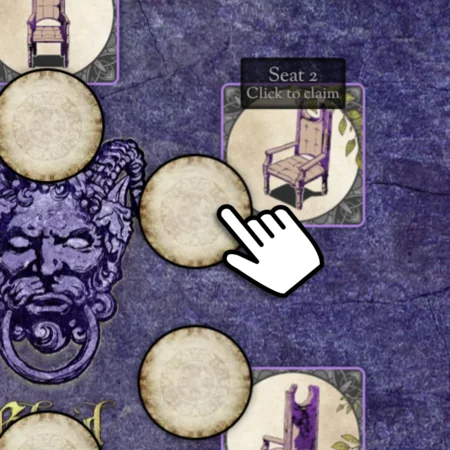
You can change a token for a player — click the player’s token.
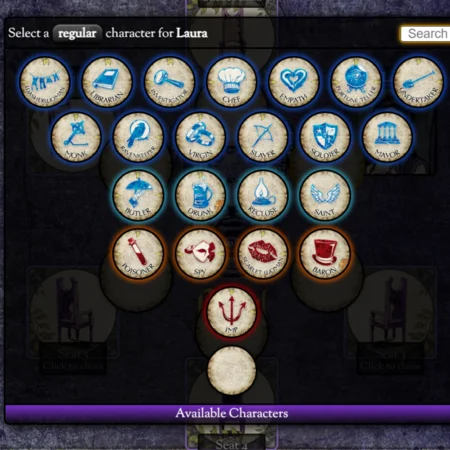
Setting a player’s token is just for you to see. It doesn’t change anyone’s role (not even your own) — handy for taking notes.
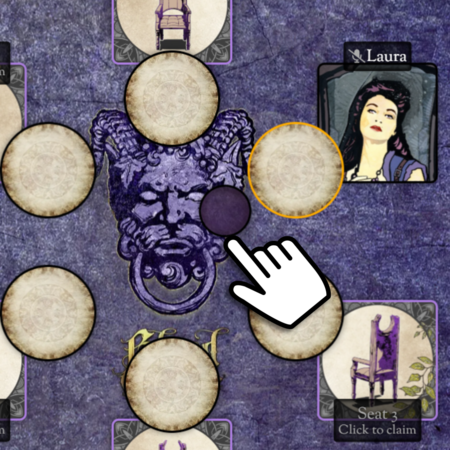
Add multiple reminder tokens to a player. Hover the inner circle until a purple blank token appears, then click the reminder token.
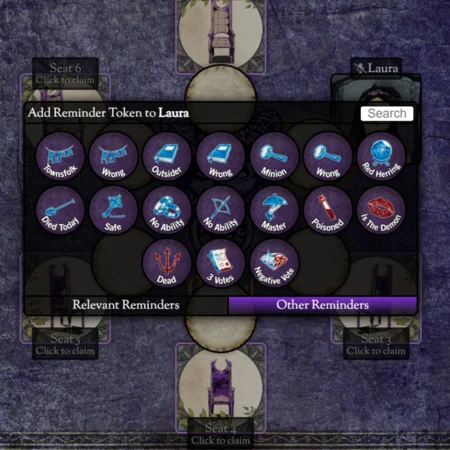
Pick any reminder token that’s in the game.
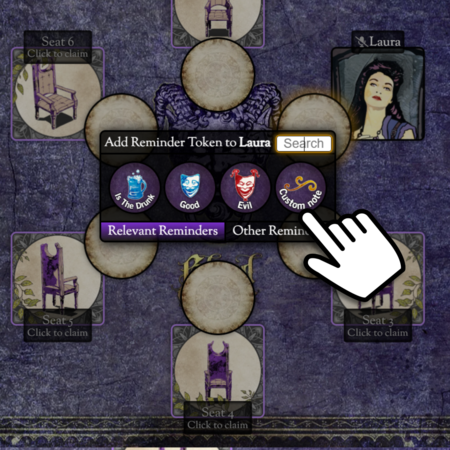
You can also make your own custom reminder tokens.
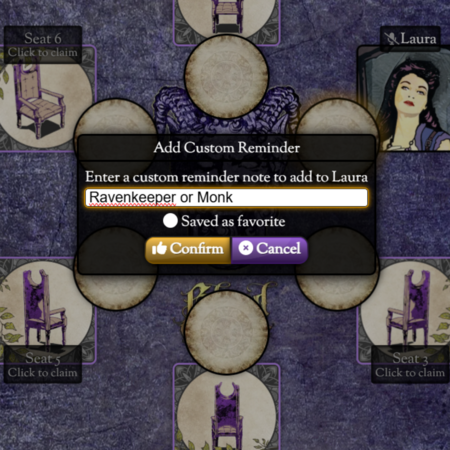
Great for multiple claims, Savant info, Gossip’s target… and so on.
Troubleshooting
Camera or mic still won’t work
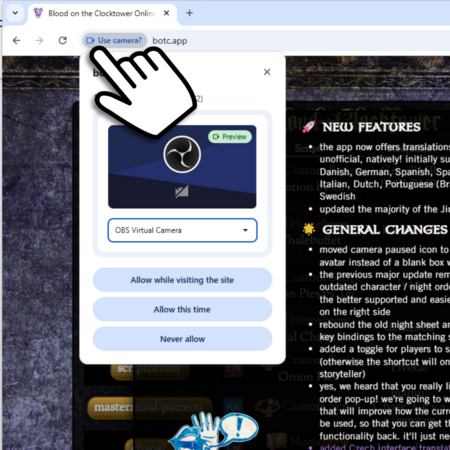
For any issue, first refresh the page — press F5, or a hard refresh with CTRL+F5. Still stuck? Check your browser permissions: find the camera icon to the left of the address bar, click it, and confirm the browser may use your camera and mic. Sometimes it’s as simple as a mute button on your headset. Verify your devices work in other apps, then refresh and try again.
Can’t see your token?
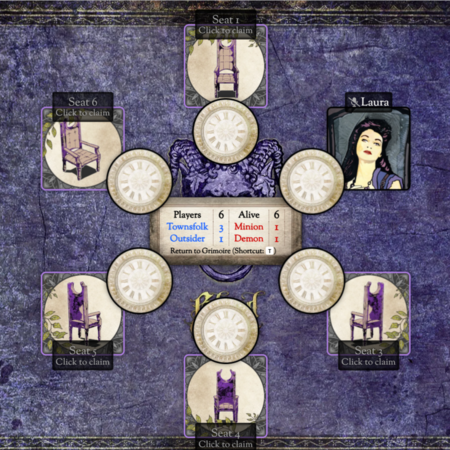
Press T on your keyboard. You’ve most likely switched to Town Square view — press T to toggle back and forth. This view is also handy for seeing how many of each character type there should be, and the player count, dead and alive.